chevron_right
chevron_right
How to disable ads using Wordpress Plugin
How-To/Instructional

How to disable ads using Wordpress Plugin

Last Updated today
Article Navigation
Introduction
Instructions
Contact Information for Further Assistance

Introduction

The Ezoic WordPress plugin lets you disable ads for any user logged into your site under a specific role — Administrator, Editor, Author, Contributor, Subscriber, or any custom role created by another plugin. It's a flexible exclusion tool that solves three common publisher needs in one place:

  • Protecting your account from invalid clicks. Your internal team — editors reviewing live content, authors checking how a post renders, admins managing the site — can browse ad-free, removing any risk of inadvertently triggering invalid-click flags with Google.
  • Delivering an ad-free experience to paid subscribers. If your site uses WordPress roles to identify paid members (either natively or via a membership plugin like Paid Memberships Pro, MemberPress, or Restrict Content Pro), you can give subscribers the cleaner experience they're paying for without installing a separate ad-suppression tool.
  • Giving custom audience segments a tailored experience. If you've created custom roles for VIP readers, contest entrants, beta testers, or any other segment, the same control applies to them.

Because this is built into the Ezoic plugin, you don't need additional code, cookie management, or third-party integrations for any of these use cases — every role WordPress recognizes is selectable from a single dropdown.
Instructions

1. Access the Plugin Settings

  1. Log in to your WordPress admin dashboard.
  2. Navigate to Settings > Ezoic.

2. Open Ad Placements Settings

  1. Within the Ezoic plugin interface, click on the Ad Placements tab.
  2. In the top-right corner of the plugin settings area, click on the Gear Icon (Settings).

3. Configure User Targeting by Role

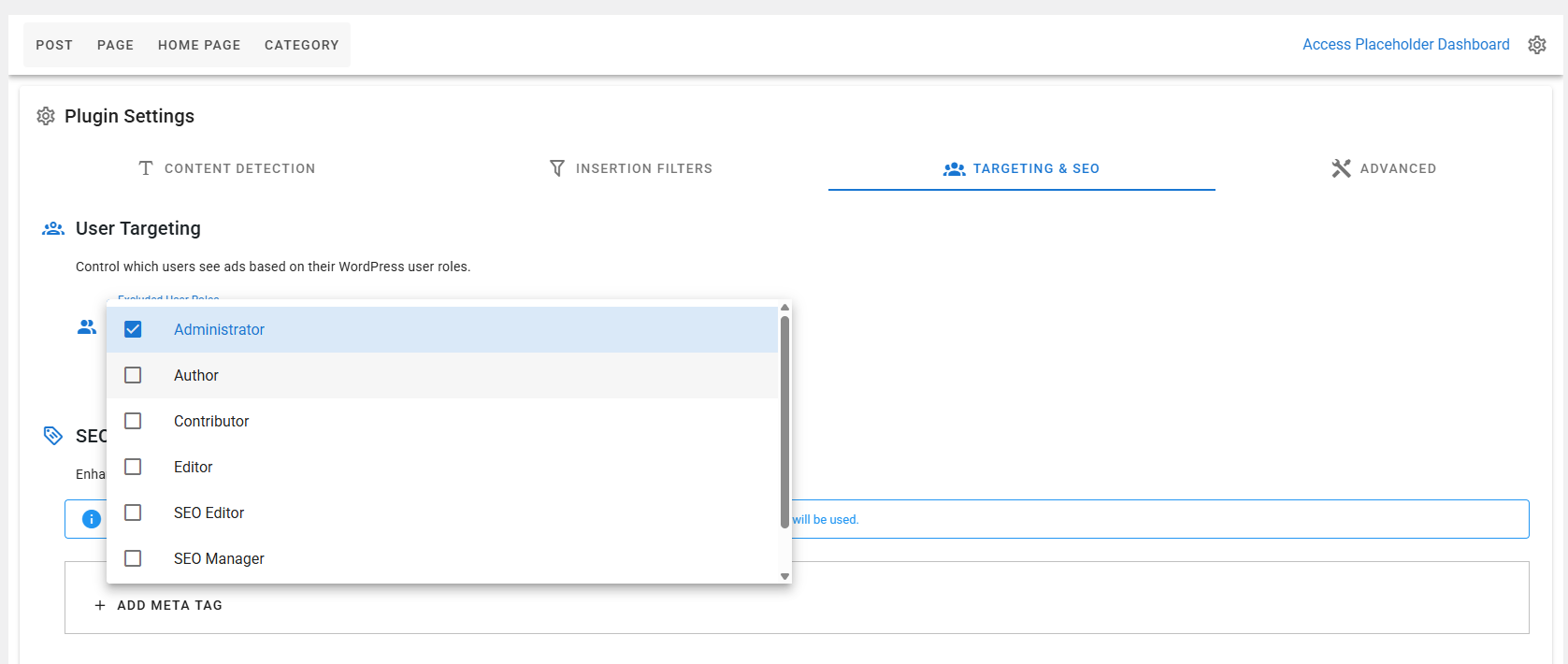
  1. Select the Targeting & SEO tab from the horizontal menu.
  2. Locate the User Targeting section.
  3. Click the dropdown menu to see a list of all WordPress roles available on your site. This includes the standard WordPress roles (Administrator, Editor, Author, Contributor, Subscriber) plus any custom roles created by other plugins (e.g., membership tiers from Paid Memberships Pro, custom roles from User Role Editor or Members).
  4. Check the box next to each role you want to exclude from seeing ads.
    • Example: To deliver an ad-free experience to paid members, select your membership plugin's paid-tier role.
  5. Click Save Changes at the bottom of the page.

Changes take effect immediately for new sessions. If you don't see the change reflected right away, clear any active site caching (WordPress cache plugins, server-level cache, or Cloudflare cache) and reload.

Contact Information for Further Assistance

If you need further assistance with disabling ads, please log in via support.ezoic.com to make use of our dedicated resources for support. We're here to help!

× Enlarged Image

Loading ...